
HGVSOLUTIONS.COM – QUICK START GUIDE CD ROM
STEP 1: A quick intro to using Low Bridge POI
Step 2: Checklist
of software and equipment needed
Step 3: Using navman HOME and choosing the Low Bridge POI
Files
Step 4: INSTALL
THE OTHER 2 LOW BRIDGE POI FILES
Step 5: RE-START
THE NAVMAN AND USE IT
STEP 1: A quick intro to using Low Bridge POI
These instructions are for
NAVMAN V3 Software.
Platform and Software Supported
If your Navman uses
Smart ST V3 or later then our POI data packs will work. If you have SmartST
2005 or 2006 it will also work. The following list (is as up to date as
possible) of what will work;
§
iCN510 (V3 and newer)
§
iCN520 (SmartST 2005 or newer)
§
iCN530 (SmartST 2006 or newer)
§
iCN550 (SmartST 2005 or newer)
§
iCN 610 (V3 and newer)
§
iCN620 (V3 and newer)
§
iCN630 (V3 and newer)
§
iCN635 (V3 and newer)
§
iCN650 (V3 and newer)
§
NAVMAN iCN720
§
NAVMAN iCN750
§
iCN7xx (SmartST 2006 or newer)
§
N-range (incl N20, N40i, N60i)
§
F-range*
§
Pocket PC (V3 and newer)
§
PiN570
§
PiN300
§
Sony NVX-P1
*F20 – May require
connectivity kit if not already supplied.
Platform and Software not
Supported
These versions will not
work and are the older units.
§
Navman Pocket PC (With V1)
§
Pocket PC (With V2)
§
iCN510 (With V2)
§
iCN620 (With V2)
§
iCN630 (With V1)
§
iCN630 (With V2)
§
iCN320 & 330
§
Navman SmartST Pro V1 & V2
If
you are unsure as to which version you have on your device then please check in
the ABOUT screen.
Quick Overview
There are 6 easy steps to using this Landis Media
Ltd – Fleet and Low Bridge Data Disk with your Navman. If you get stuck then
refer to the TROUBLESHOOTING section on the CD ROM.
This first step introduces
you to using Low Bridge POI data and an overview of the system in use. Make
sure you read this step because the background given will help you decide which
POI files you will need later. We give two EXAMPLES
to demonstrate how in practice Low Bridge POI warnings work.
NOTE: The maps below are just for illustration purposes and not
taken from a Navman unit. You can see similar style maps on your Navman device
and this is demonstrated later.
Example 1: You have a 15ft 4inch cab height and your vehicle can’t
fit under the 14ft 7inch
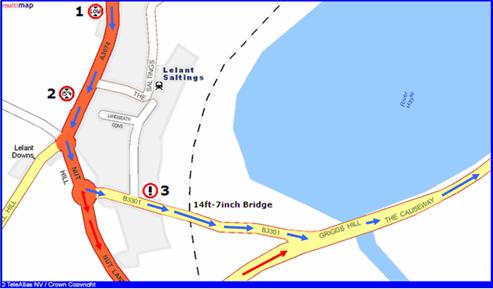
Please follow step by step
what happens on the picture above:
 You follow the route that
the Navman has planned (shown by the BLUE arrows)
You follow the route that
the Navman has planned (shown by the BLUE arrows)
You are 2km from the
Bridge at Point 1 – you hear and see
the POI alert for the All_Low_Bridges_Data POI
This warning tells you that
a bridge is coming up and that you need to listen out carefully for further
warnings over the next 2 KM. You continue to drive
You are 1.5km from the
Bridge at Point 2 – you hear and see
15ft 4inch Low Bridge POI warning (for your cab height). You know your vehicle won’t
fit under the Bridge ahead and that you will need to choose a new route.
You choose an alternative
route using the Navman (shown by the RED arrows) and divert off the old route at
Nut Hill roundabout. This takes you down
You rejoin the planned main
route (BLUE arrows) at Griggs Hill and continue your journey as planned.
Example 2: You are now in a truck
with a 13ft 2inch cab height. You can easily fit under the 14ft 7inch
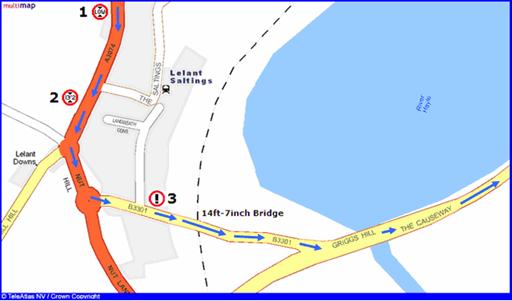
Please follow step by step
what happens on the picture above:
You are 2km from the
Bridge at Point 1 – you hear and see
the POI alert for the All_Low_Bridges_Data POI
This warning tells you that
a bridge is coming up and that you need to listen out carefully for further
warnings over the next 2 KM. You continue to drive
You are now 1.5km from
the Bridge at Point 2 – this time you
don’t hear or see any warning, why not ? Your cab
height in this example is 13ft 2inches and so will fit easily under the 14ft
7inch railway bridge ahead. Since you don’t hear any warning you can keep
driving confidently following the planned route (Blue arrows)
You are now 100m from
the Bridge at Point 3 – you then
hear and see the Alert_Low_Bridge_Close POI warning. This tells you that you
are 100m away from the Bridge and should reduce speed
This warning is used as
a safety feature in case of fog, bad road conditions, corners or temporary
bridge height reductions (local council put scaffolding up)
You drive under the
bridge and continue on your planned route
USER TIP: These examples show that just 3 POI files contain all
the information needed to avoid every
Step 2: Checklist of software and equipment needed
Please make sure that
you have the following;
A PC laptop or desktop
running Windows XP
Navman device (whichever
model you use) charged up
USB cable to connect the
Navman device to the PC
The LANDIS MEDIA Ltd - Fleet
& Low Bridge CD
A note of your UNLOADED
cab height
You need the latest copy
of Navman SmartST Desktop software installed on your PC. Navman SmartST Desktop
makes sure that you can load the POIs onto your Navman device.
Even if you already have
Navman SmartST Desktop installed, make sure that it’s the latest version.
Finally please ensure
you make a BACKUP – should anything
go wrong then you can always restore it. Landis Media Ltd cannot be responsible
if you make a mistake whilst installing POIs.
Step 3: Using navman HOME and choosing the Low Bridge POI Files
Connect your Navman
device using the USB cable to your PC and then turn it on.
Make sure that the
LANDIS MEDIA Ltd - Fleet & Low Bridge CD ROM is also inside your PC’s CD ROM
drive.
Now start up Navman SmartST
Desktop – it may auto start or you may have to start it. It will then appear as
follows;
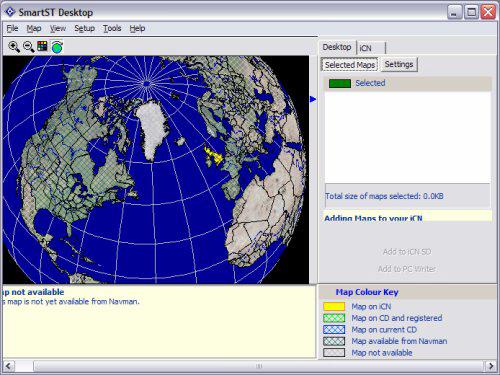
Click MAP menu
Then POI's to open the
POI Editor
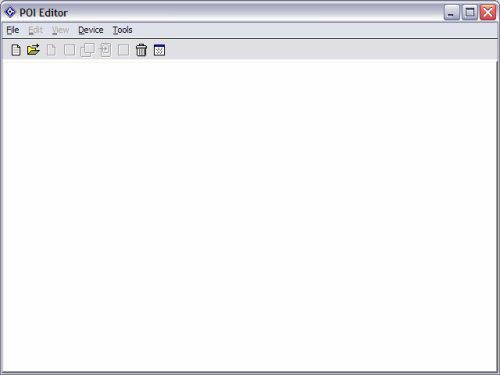
Now Click the FILE menu
Then click OPEN and browse
to the first CSV file we will be installing. As there are three Low bridge POPI
files required and two of them are always the same we will start by installing one
of these.
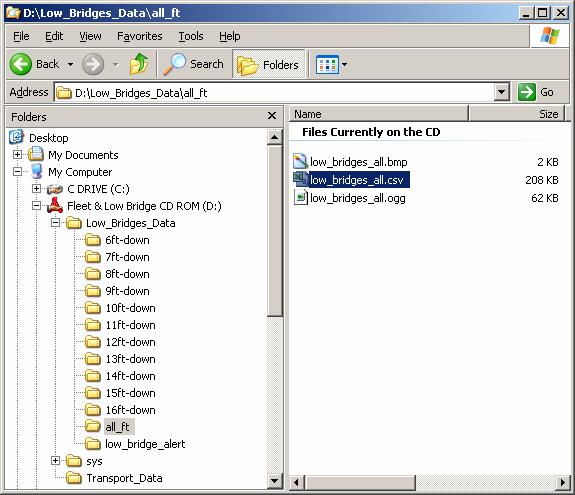
In this first example we
will use the “Low_Bridges_all.csv” file which you can see has been selected
below.
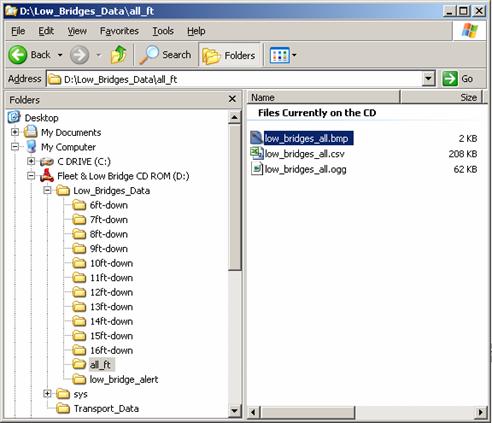
To select this open the
CD ROM
then locate the Low_Bridges_Data
folder
then locate the All_ft
folder
inside this is the file you
need – Low_bridges_all.csv (highlighted in blue below)
Later on we will discuss
the two
other files you need to setup the whole Low Bridge Warnings solution on
your Navman.
USER NOTE: Newer versions of the
software, by default, ask for Files of type: CSV Files (*.csv)' You might have to put *.* or *.asc and press 'Open' in the
File Name window in order to show the asc files.
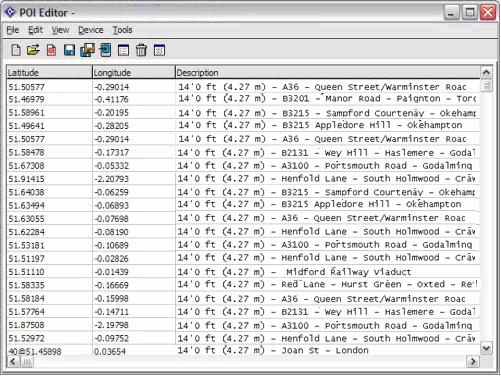
The file should now open
and you will see data similar to that shown in the screenshot below (yours will
not match this as its only an example). Still you will
see a set of data and some heights and road names.
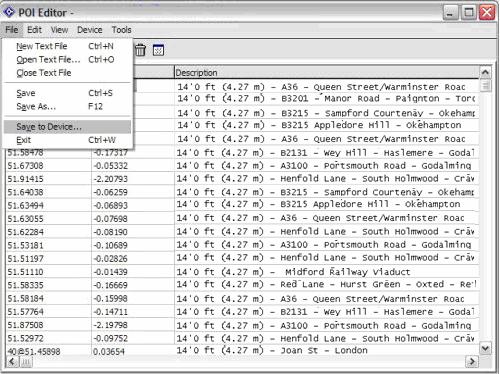
Now click the FILE menu
Then click SAVE TO
DEVICE (as shown below)
The next screen allows
you to setup a lot of different options. These are all very useful when using
Low Bridges. Using this dialogue box you can change the alert distance, what
type of alert you require etc - see manual for details of all the options.
You will also need to
setup these parameters for each of the 3
On the panel you need to;
Tick ACTIVE
Tick VISUAL ALERT & AUDIO
ALERT
Click on METRIC
Now set the distance for
the Warning to be 2000m for this POI (we want a long warning as described in
STEP 1)
Now move the slider and
increase the POI Visibility
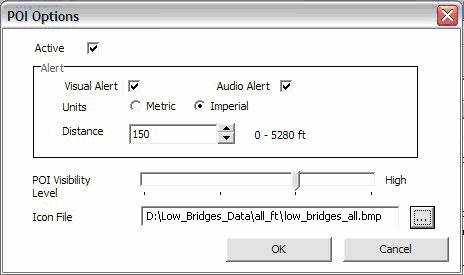
Finally locate the BMP
file that is in the same directory as the POI was in (see below)
Now finally enter a name
that this POI will appear as in the NAVMAN software, in this case
LOW_BRIDGE_ALL
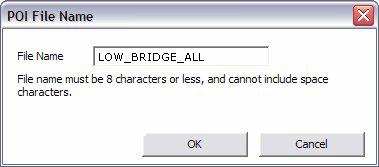
Once you click OK
- the data should be downloaded into your Navman device. You should be able to
enter the menus and see the latest addition to your POI collection in place.
You have now installed one
of the LOW Bridge POIs. To setup the low bridges you need to install the other
two files. One is the
NOTE: In our pictures above
the CD ROM is letter D: yours may be different depending on your PC. When you
first see this screen the contents of My Computer, CD ROM and other folders may
be “wrapped up” – to expand them just use the + sign that’s next to the folder
to see its contents. The window above shows the CD ROM will always be called
“Fleet & Low Bridge CD ROM” , whatever the drive
letter.
Step 4: INSTALL THE OTHER 2 LOW BRIDGE
As explained in Step 1: you have to install 3
 All
All
The final file is one of
85 CAB HEIGHT POI files
You will only need to
choose one of these to install as the third LOW Bridge POI file - but which one ?
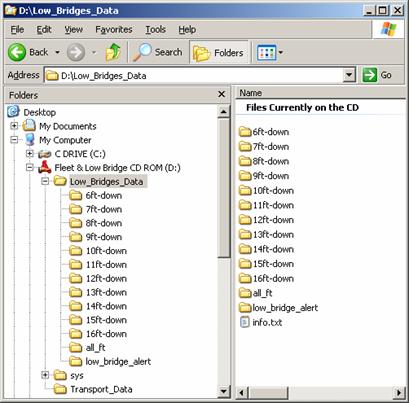
Above you can see there
are directories all the way from 16ft to 6ft and each one contains multiple
files. You need to locate a height that corresponds to your UNLOADED Cab Height. Included are the 85 separate height files
to cover every HGV, truck, caravan, lorry, motor-home and vans in the
SPECIAL NOTE: You only need your cab height from the list of 85
different heights. The Alert and All Low Bridge POIs contain every
HOW TO CHOOSE ?
If for instance you
drive a 14ft 6 inch cab – you would look in the 14ft directory on the CD ROM and
select the 14ft-6_downwards.csv file. This file is the one that closely
corresponds to your cab height and so this is the final POI file to use. In your case just pick the one that closely relates to your Cab
Height.
So now its time to
install these other two files – once you have selected your Cab Height. The warning distances that are recommended (setup
whilst loading the POI) for all the POI heights are as follows;
ALL
YOUR CAB HEIGHT e.g. 13ft 2inch WARN AT 1500m
So now locate the Alert
Low Bridges file and install that POI using the normal steps above (setting the
warning at 100m and using the right .BMP icon file)
Finally locate your CAB
HEIGHT file from the right directory and again follow the steps above and
install it. Remember to set the warning at 1500m for this POI and choose the
right icon .BMP file.
When you have completed
this (and made sure the warnings are set at the correct distances) you are then
ready to roll.
Step 5: RE-START THE NAVMAN AND USE IT
Now exit the software
and re-start your Navman. You will now have the three POI warnings enabled and
the ability to plan and divert around them as described in STEP 1. Take some time to
get used to how these work as they are a very powerful method for avoiding Low
Bridges.
You can now setup some
routes in your Navman and locate the POIs on those routes and see the heights
and warnings displayed.
CONTRACT DRIVERS NOTE: If you are a contract
driver and drive many different sized vehicles on various different occasions
you may want to install several
OTHER TRANSPORT DATA
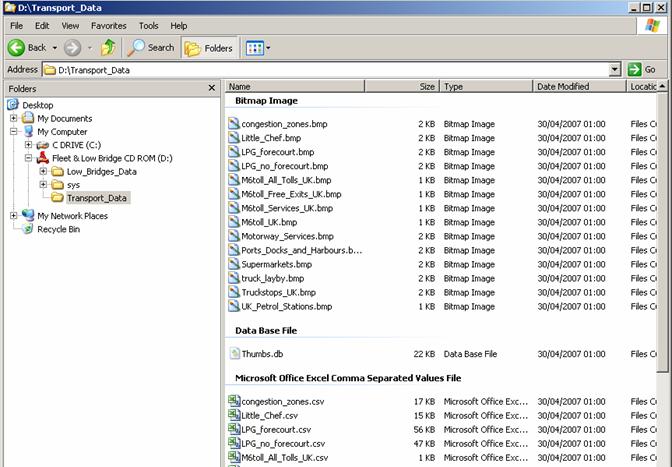
We have also included on
the disk some other useful transport data, This is in
the other directory called TRANSPORT_DATA on the CD ROM. You can see this list
of Navman CSV files and the BMP images for the icons below.
Just repeat the steps
above for installing the Low Bridges, though you may not need proximity
warnings for all of these extra POIs.
If you have a more
complex query or are getting stuck at a particular point you can always contact
us at helpdesk@tomtompoi.net